Claude Code Configuration
Add and enable the GETMODEL provider for Claude Code in CC-Switch
Prerequisite: Please complete the client download first, otherwise the CC-Switch desktop app won't be available.
Add the GETMODEL provider
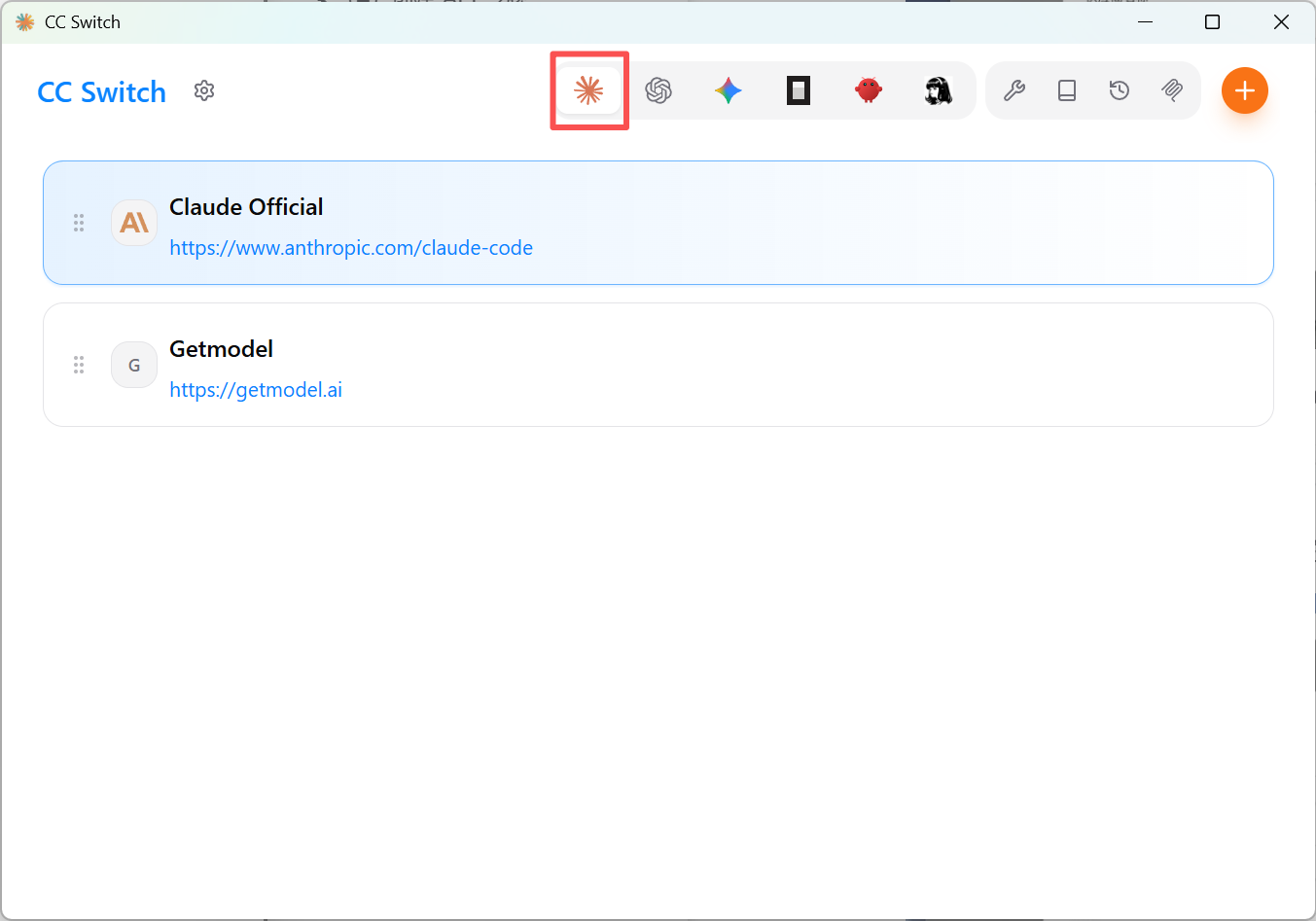
Open CC-Switch and switch the top group bar to Claude Code
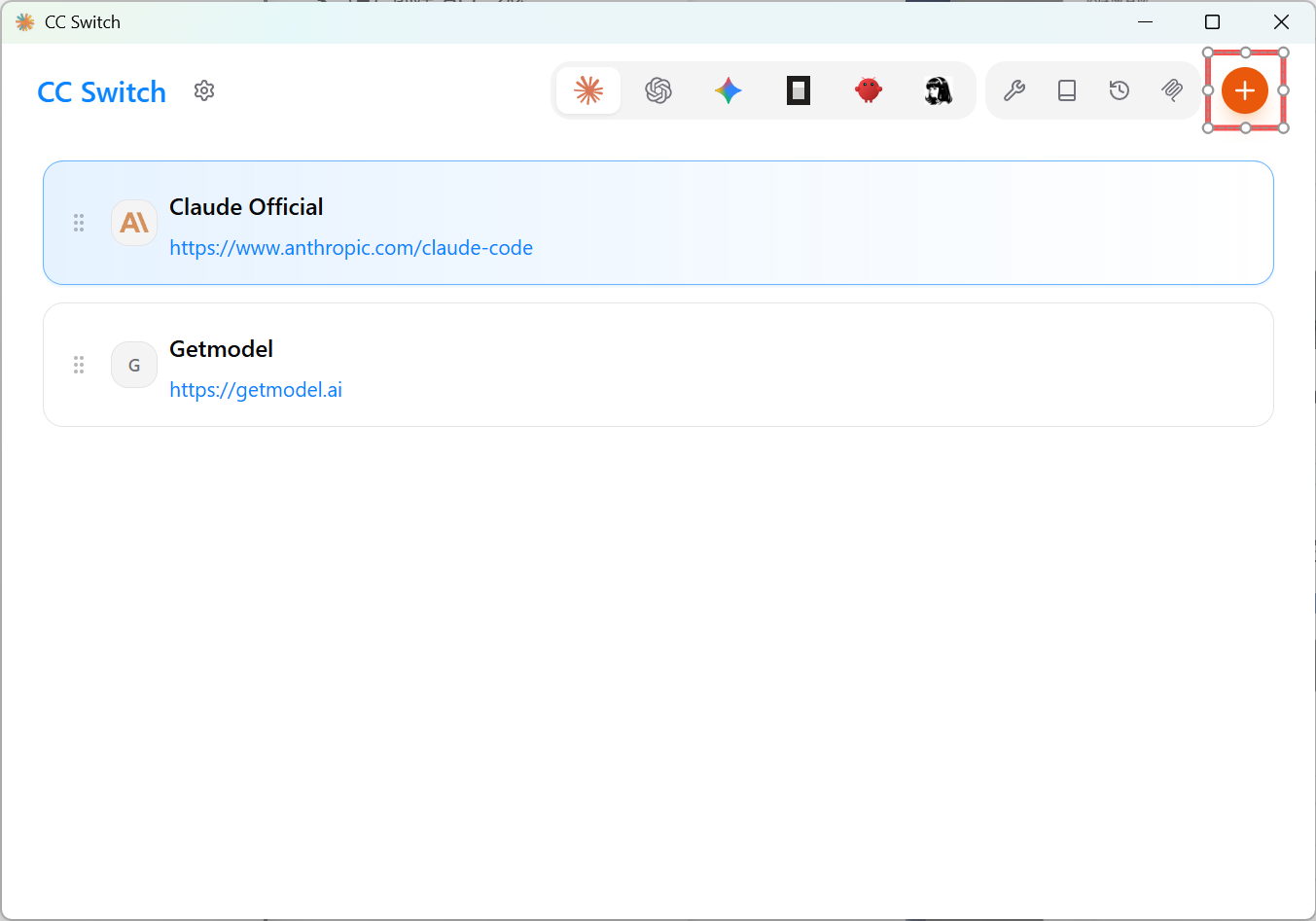
Click the "Add Provider" button
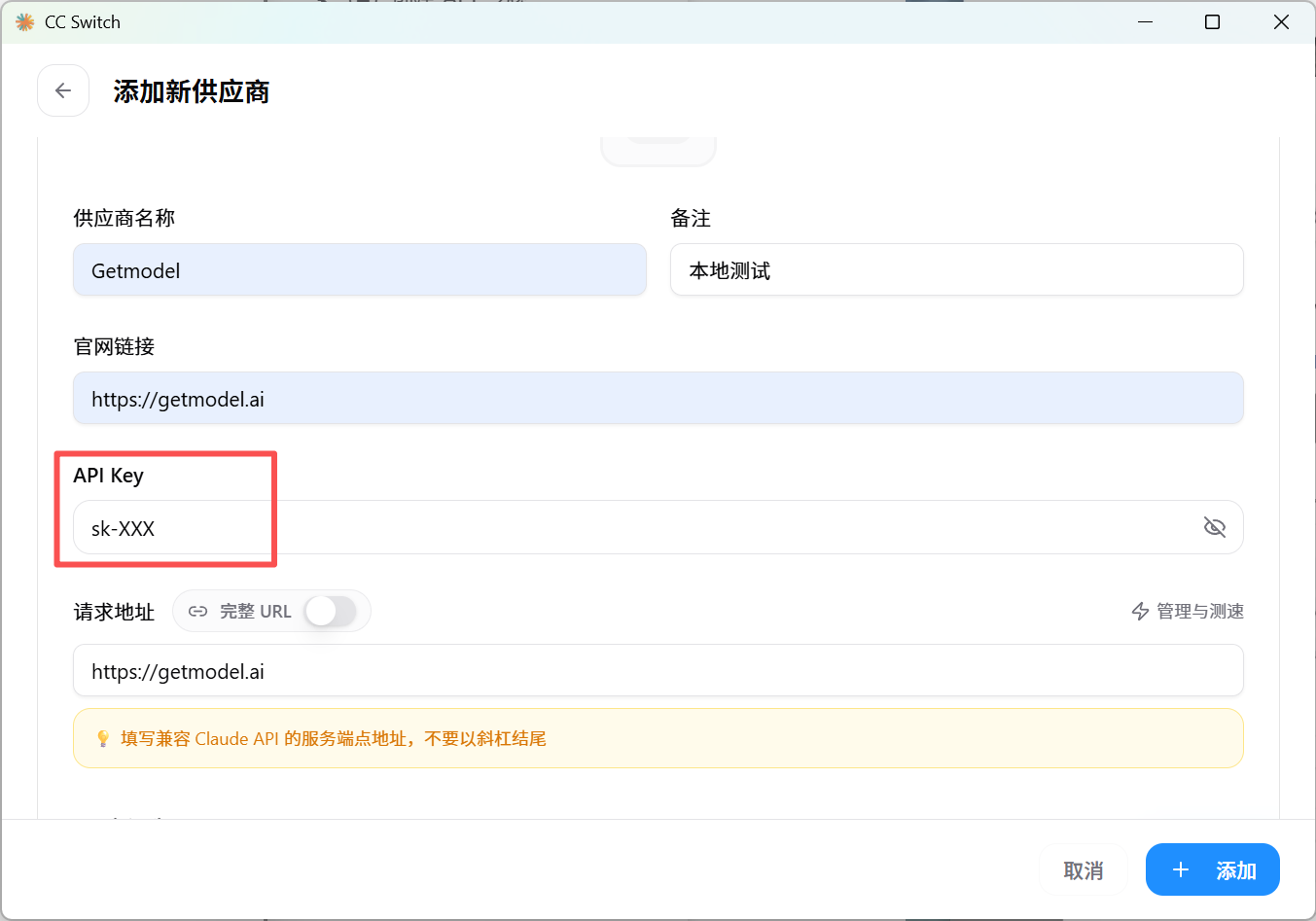
Fill in the form that pops up:
- Provider name: your choice, for example
GetModel-CC - API request URL:
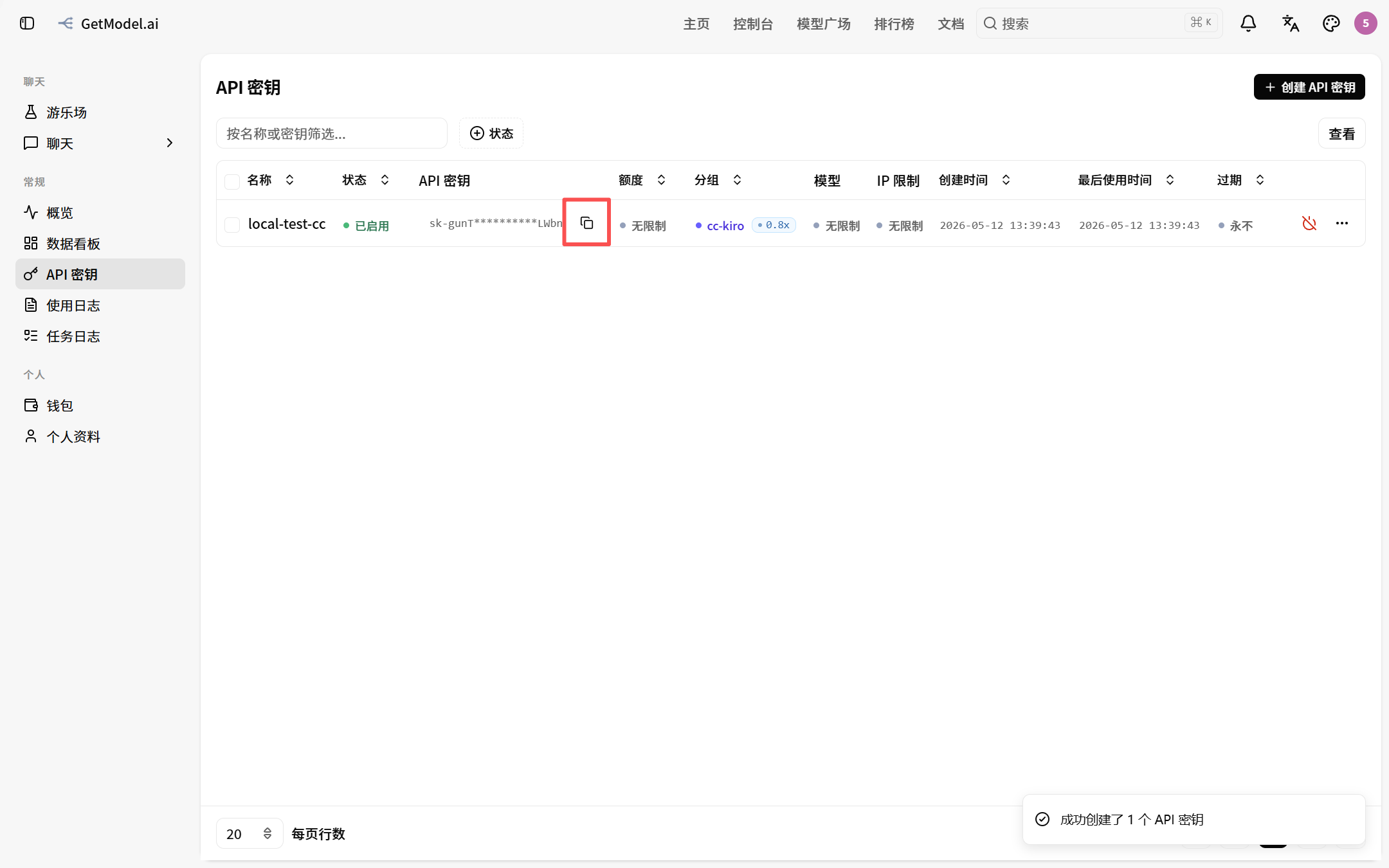
https://getmodel.ai - API Key: the string you got when creating an API token
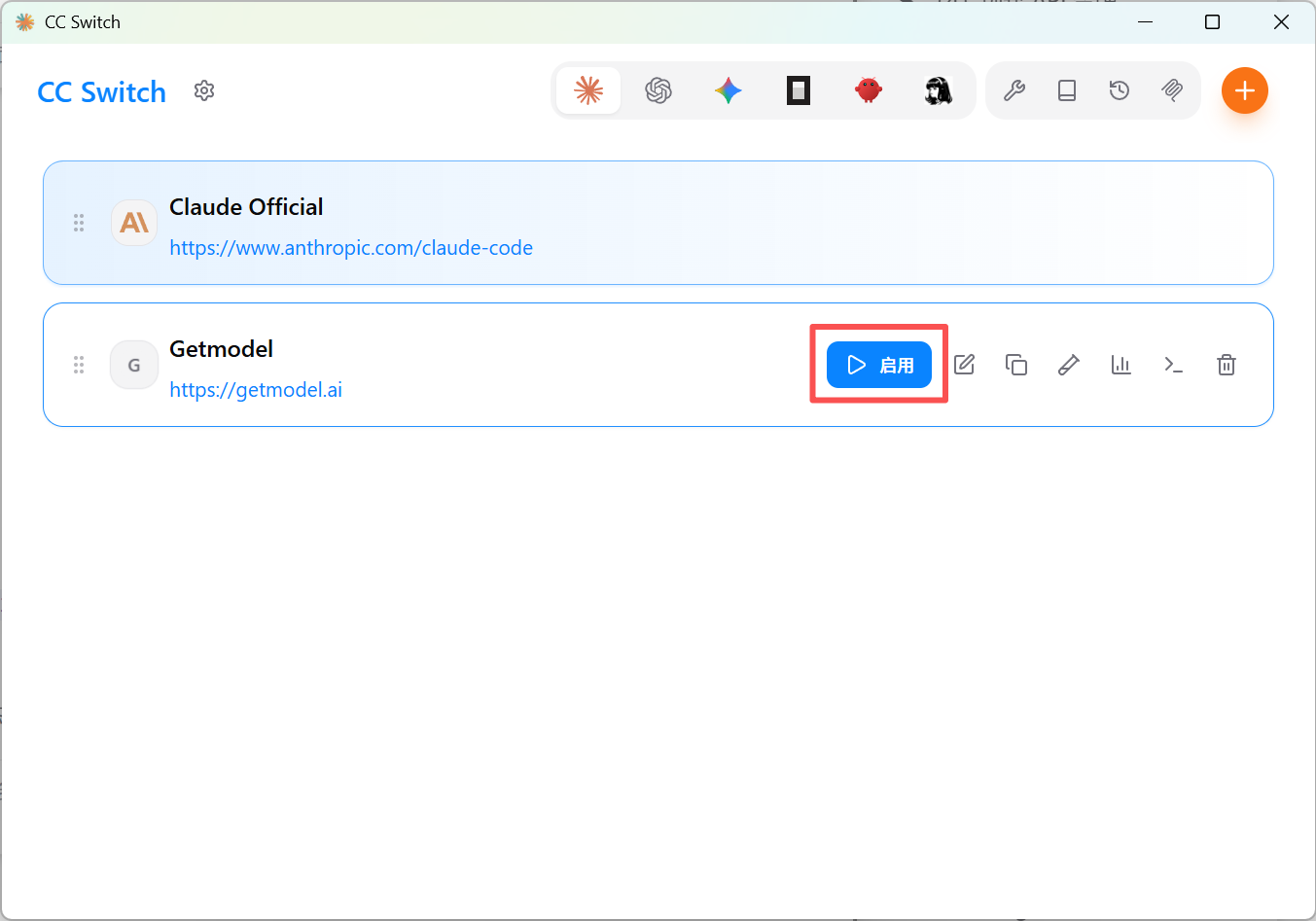
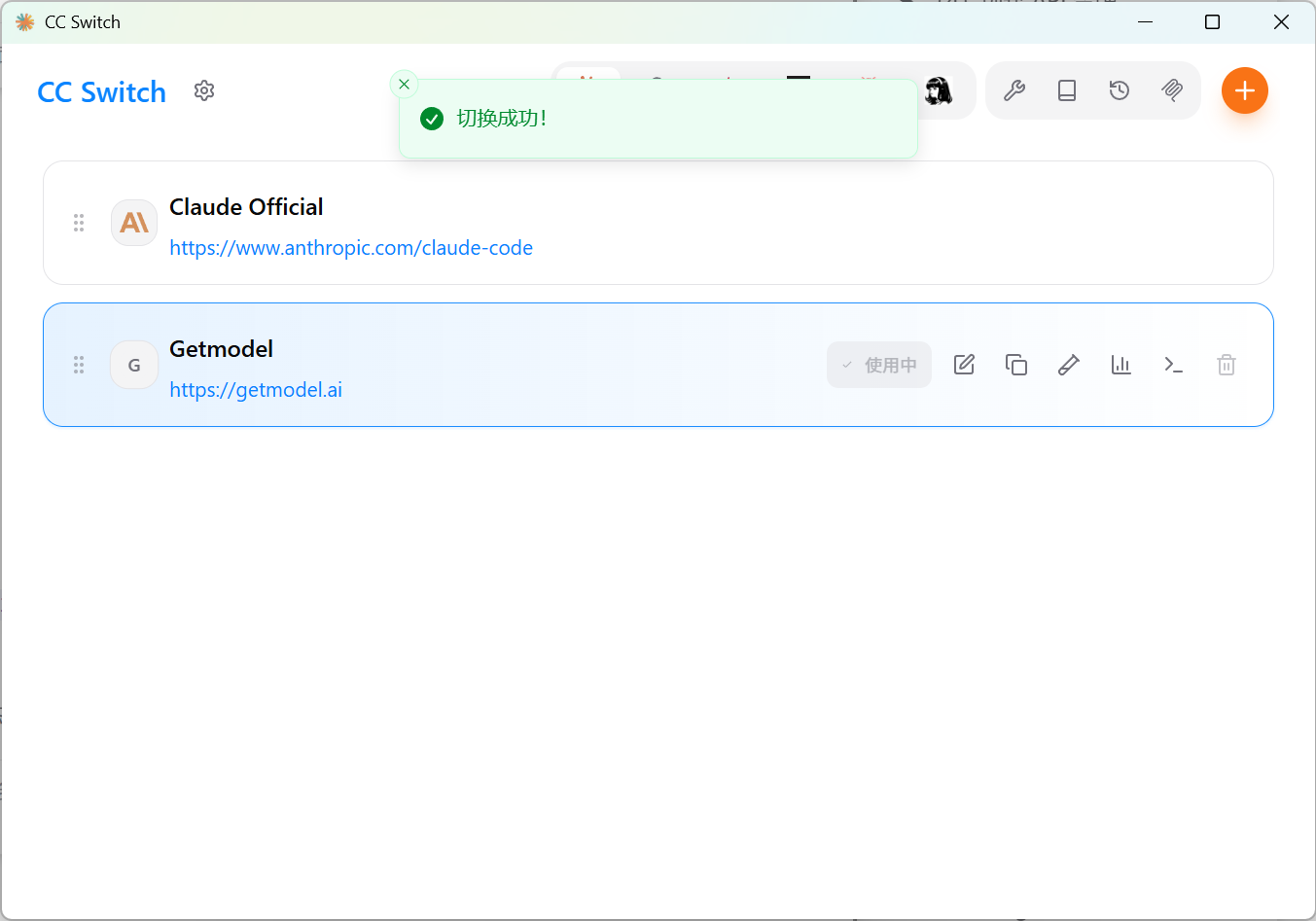
Back on the main screen, click "Enable" to the right of the newly added provider; once the status changes to "In use" you're done
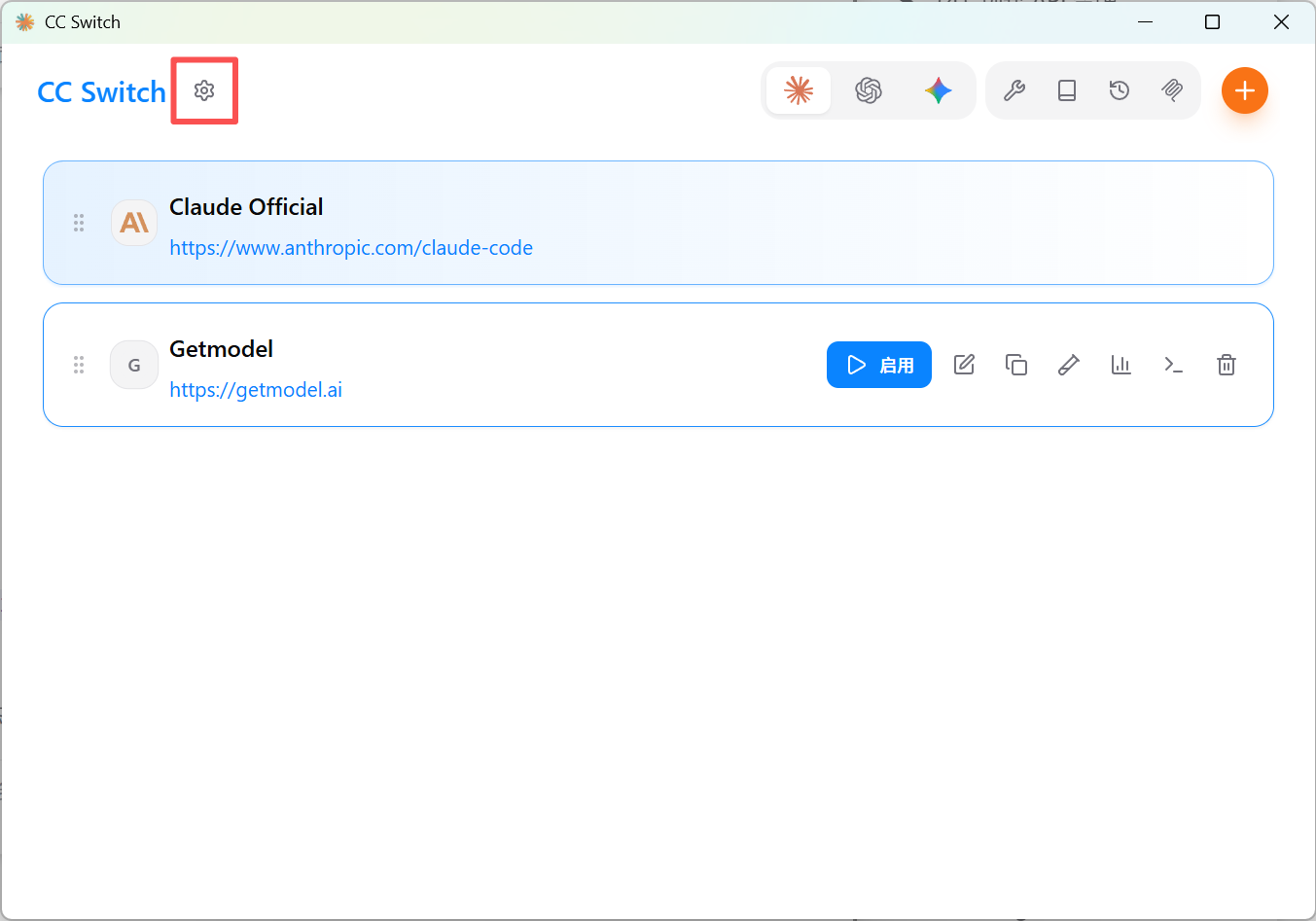
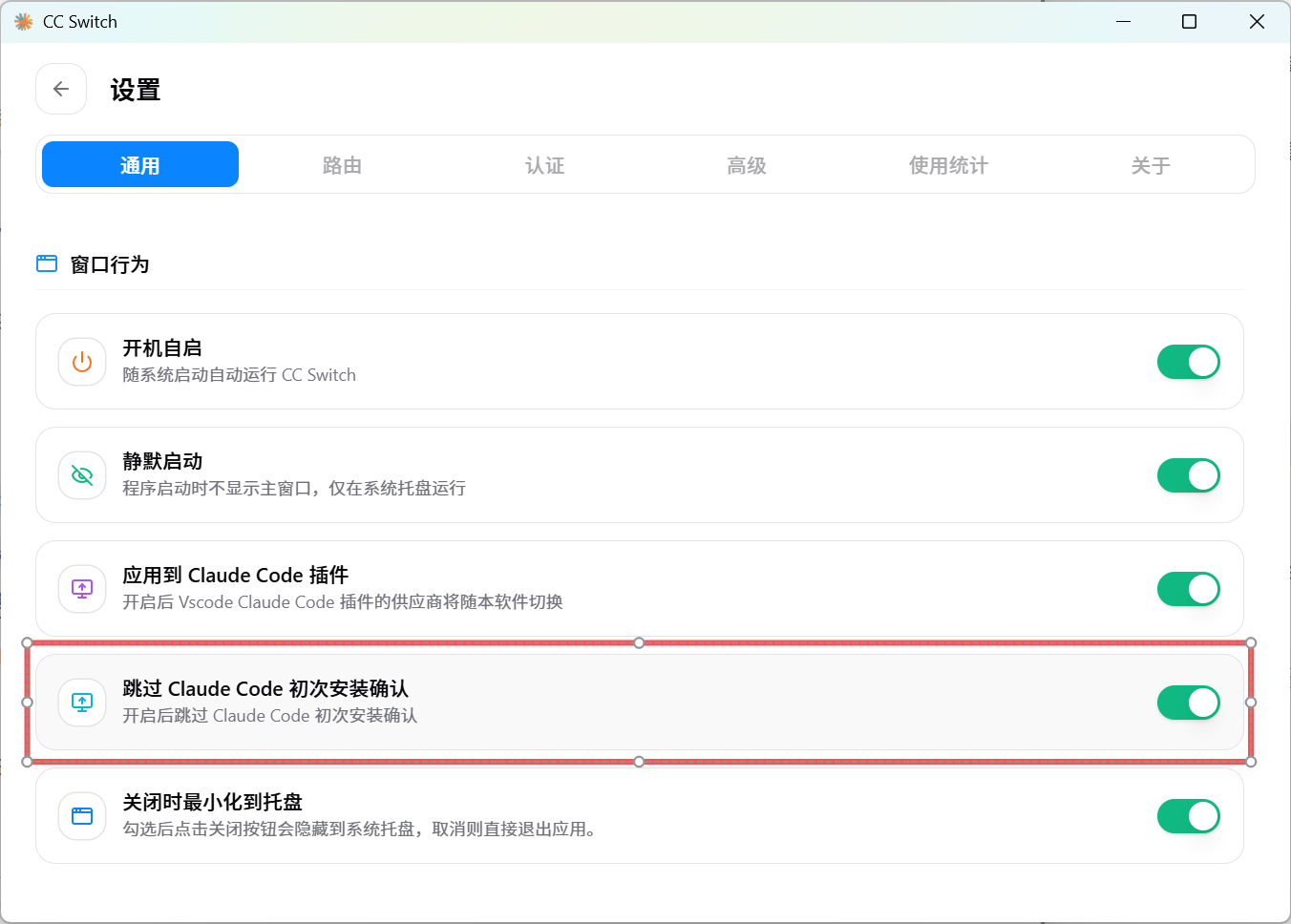
Click the "Settings" button, scroll down in the General section to find Skip Claude Code first-install confirmation, and be sure to check it
Enabled = the configuration actually in effect for the current CLI. When switching, CC-Switch directly modifies Claude Code's config file, so after switching the claude command uses the new configuration immediately, with no restart needed.
Verify
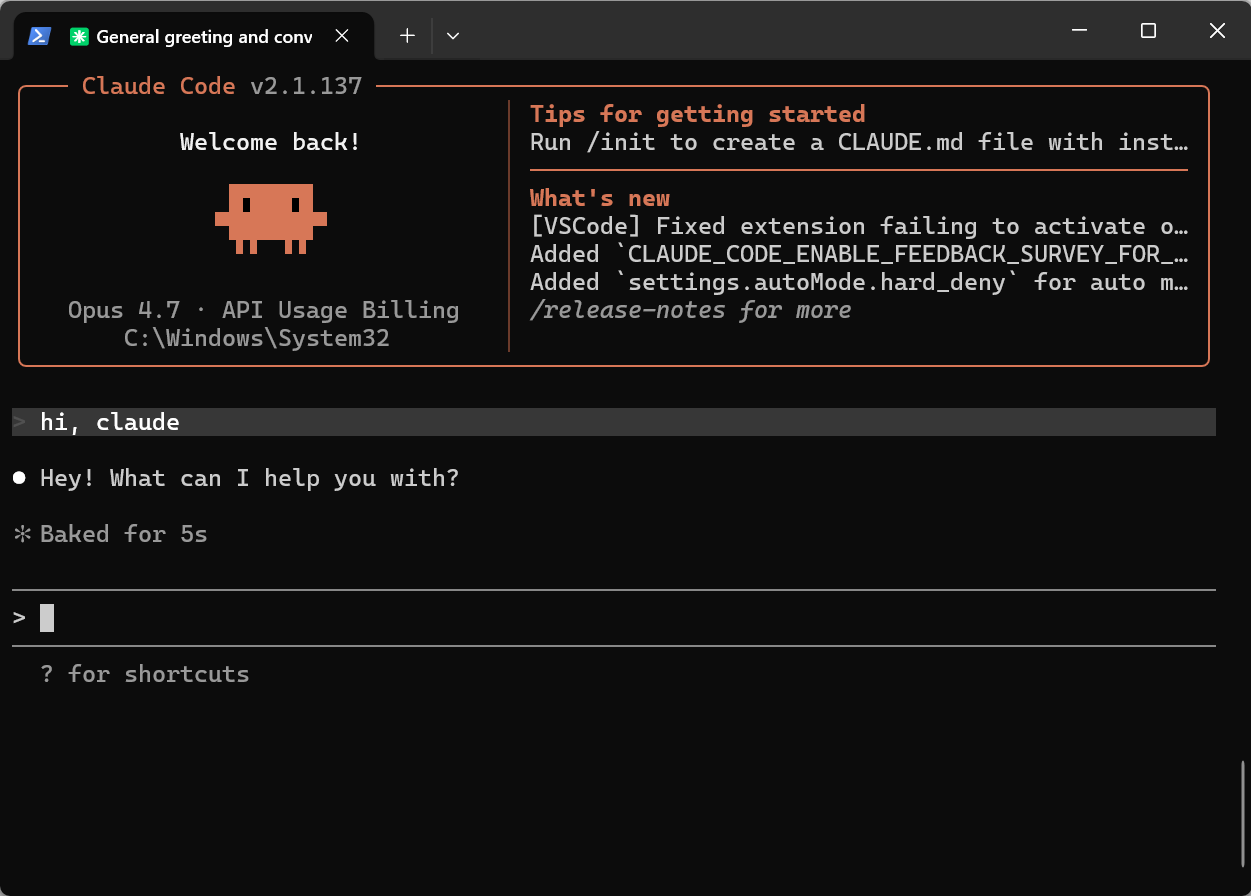
Open a terminal and run claude; if you can chat normally, the configuration is in effect.