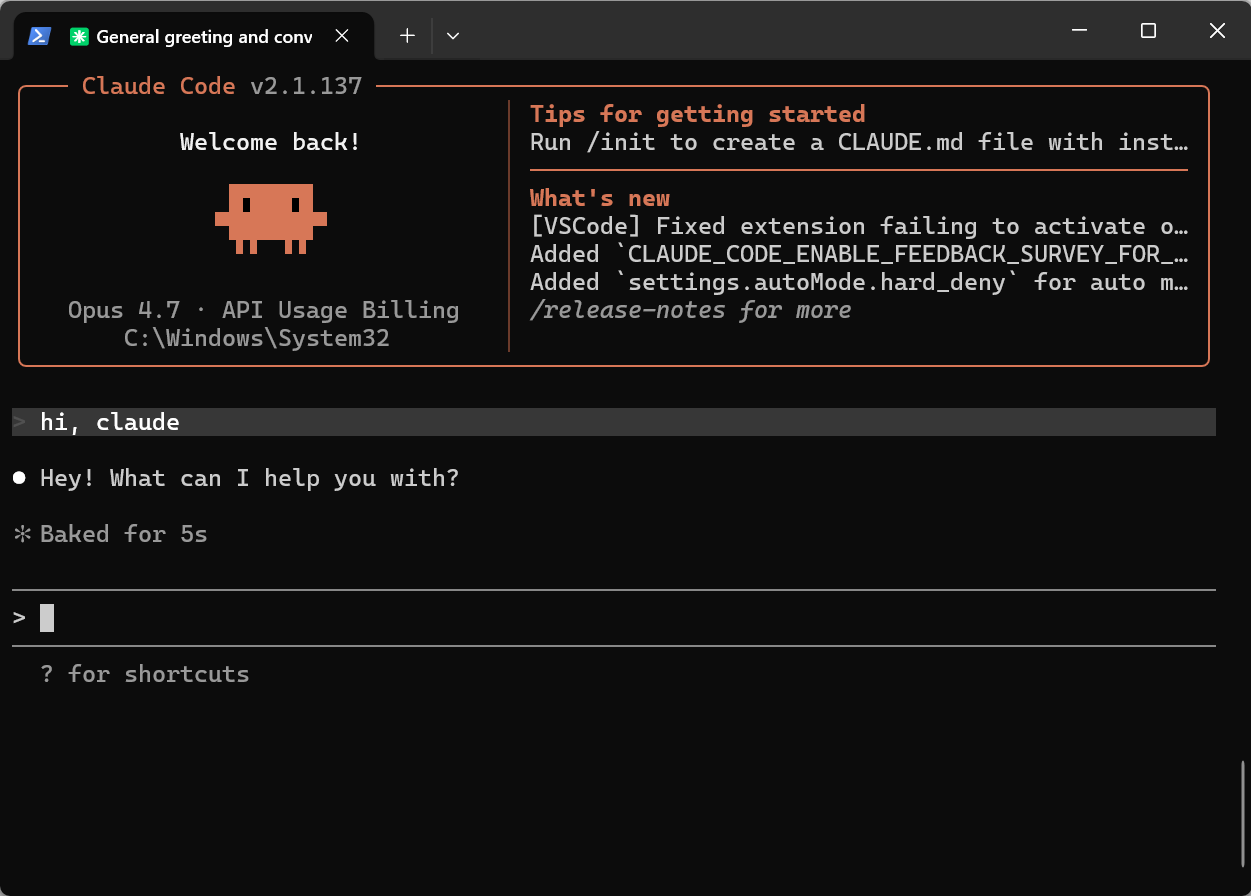
Claude Code Configuration
Add a GETMODEL API Key to Claude Code in GetModel Desktop
Prerequisite: Please complete the client download first, otherwise you won't have the GetModel Desktop app available.
Add a GETMODEL API Key in One Click
Open the GetModel API Tokens page
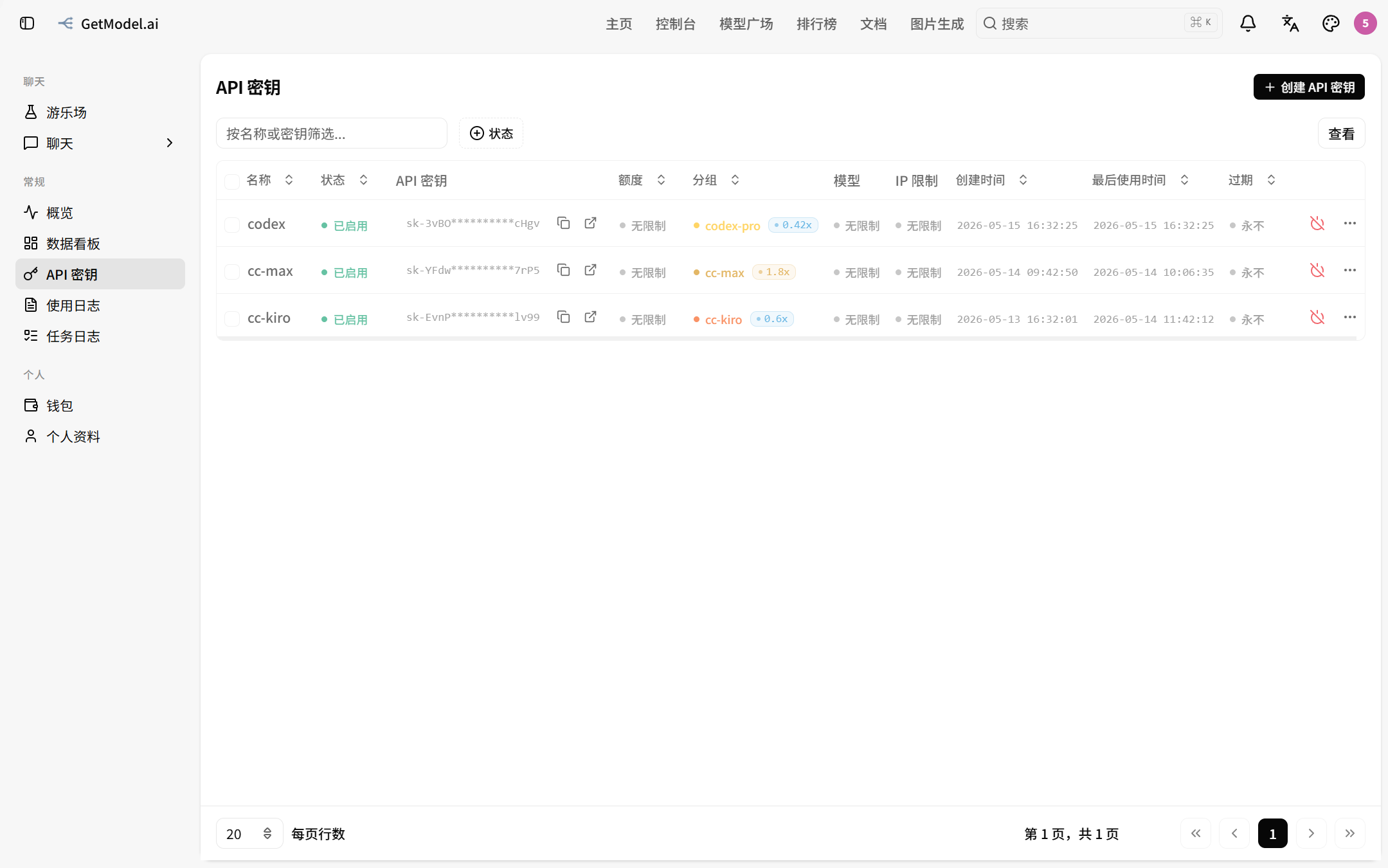
Find the cc-related group and click the "One-Click Import" icon
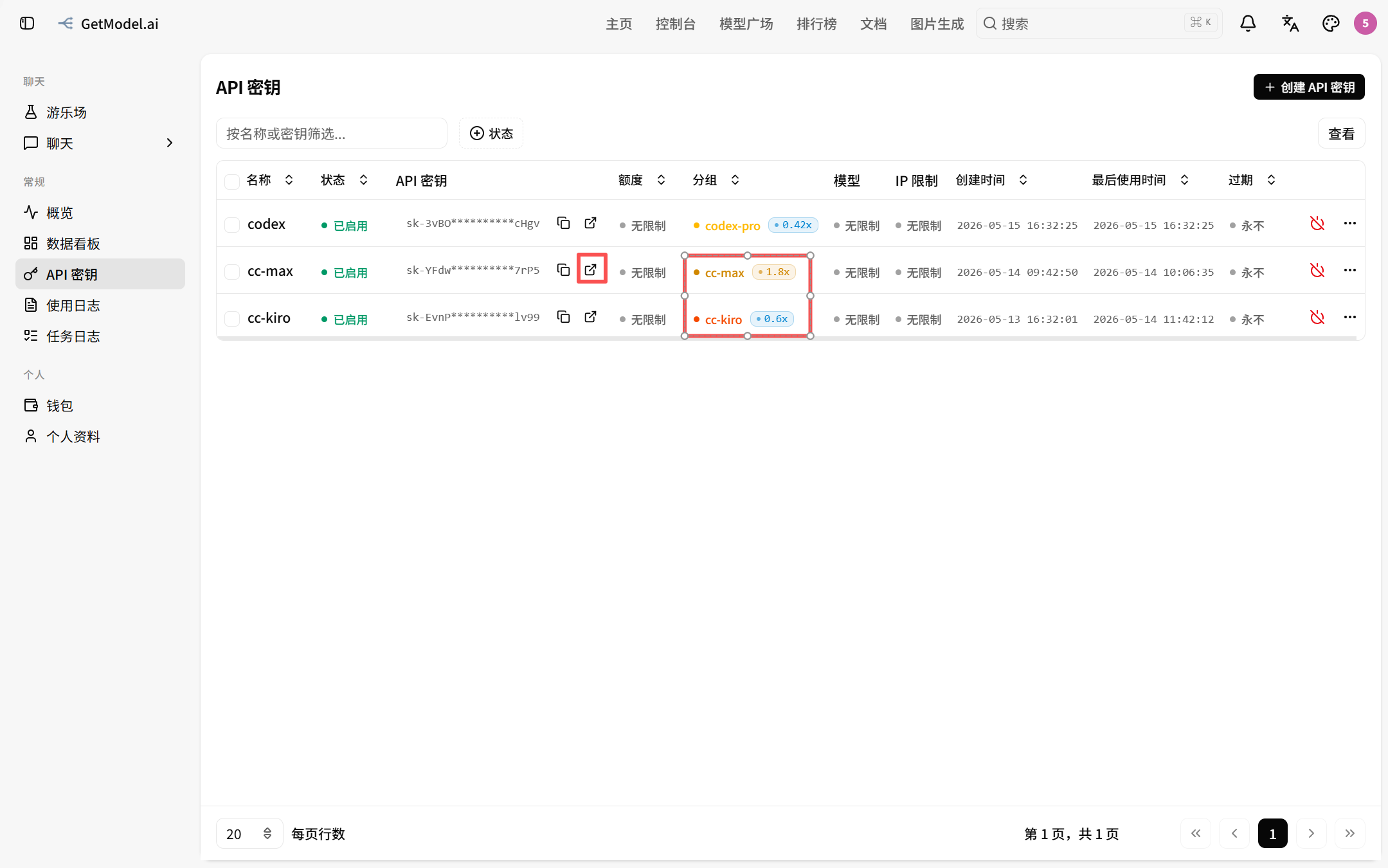
Select Claude, fill in the relevant model, and click the "Open GetModel Desktop" button
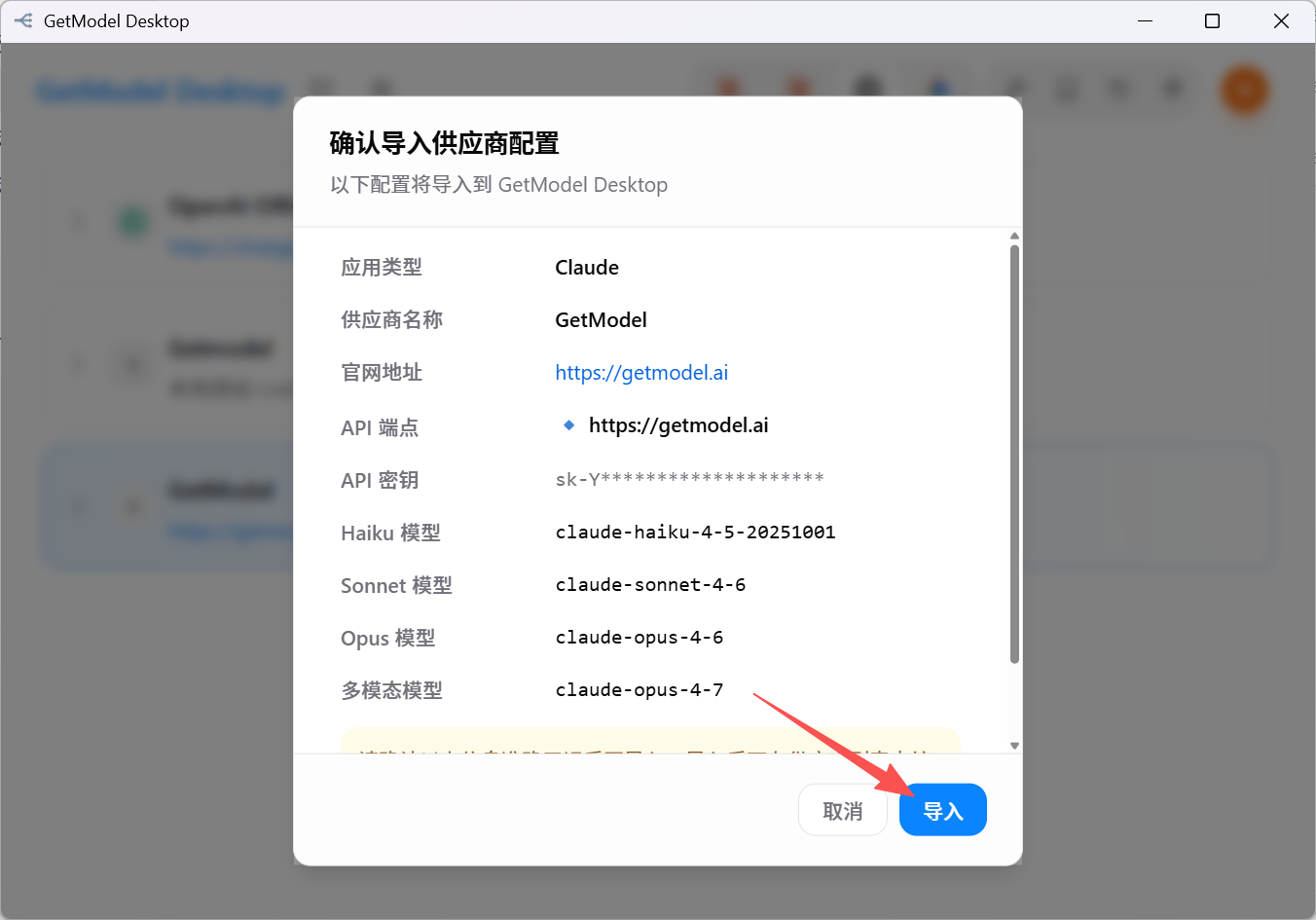
GetModel Desktop opens automatically. Click the "Import" button
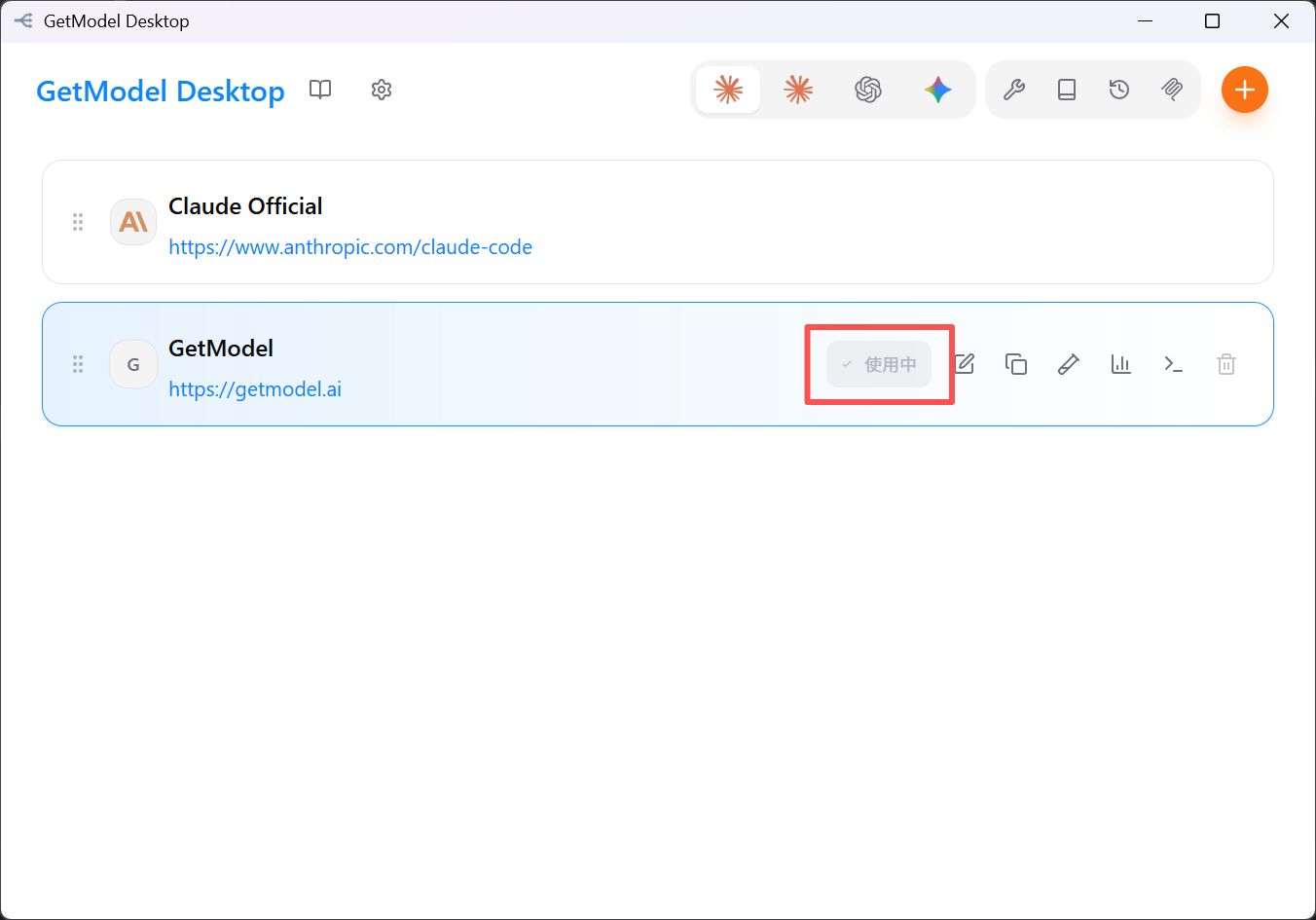
It has automatically switched to the GetModel Key~
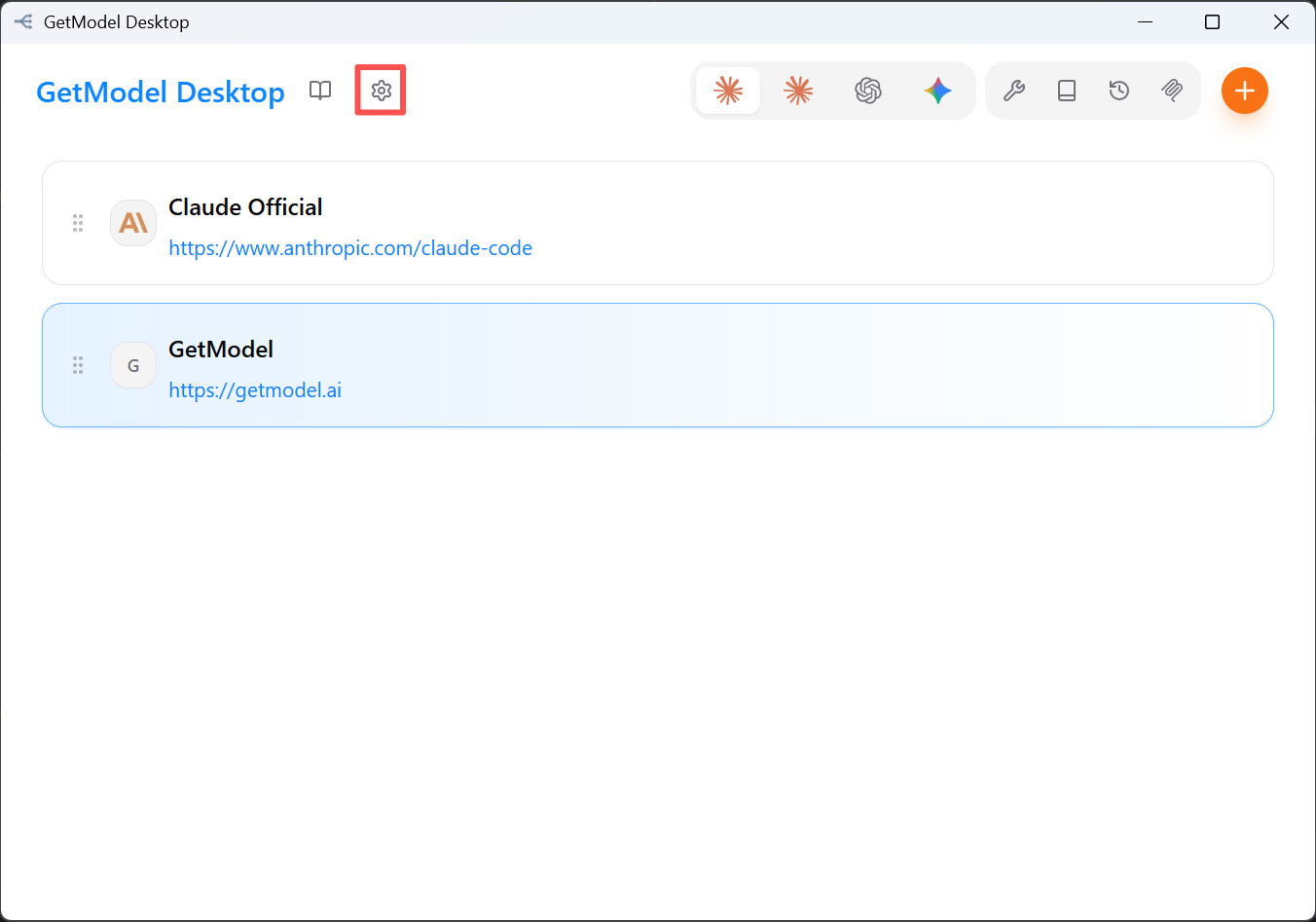
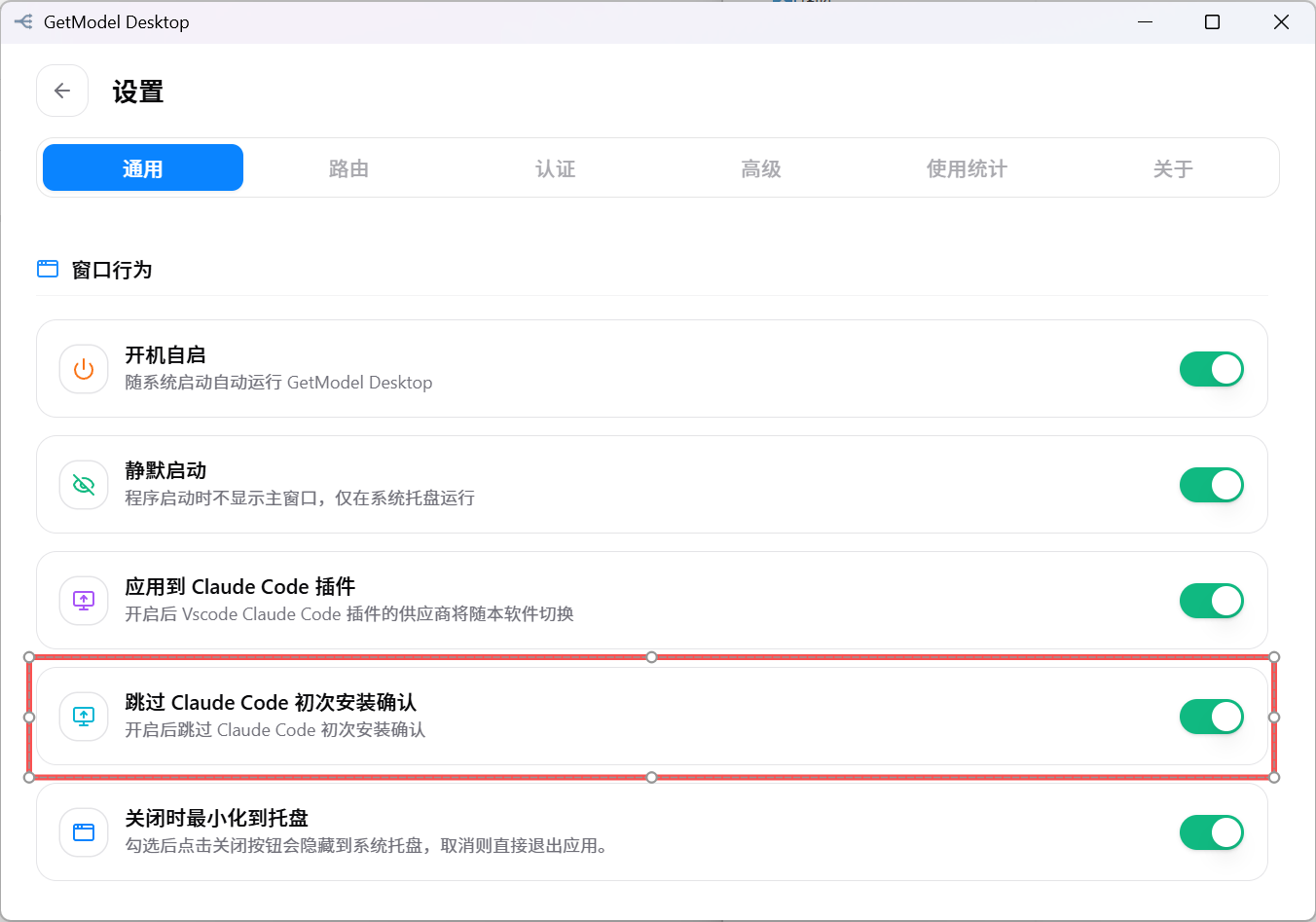
Click the "Settings" button, scroll down in the General page to find Skip Claude Code first-install confirmation, and be sure to check it
Enabled = the configuration currently in effect for the CLI. When switching, GetModel Desktop directly modifies Claude Code's configuration file, so right after switching the claude command immediately uses the new configuration, with no restart needed.
Verification
Open a terminal and run claude. If it can chat normally, the configuration is in effect.